
The best docking stations turn a single laptop connection into a complete desktop setup, adding displays, charging, networking, and easy access to peripherals.
These 10 picks cover compact USB-C hubs, universal docks, and high-performance Thunderbolt options for home offices, travel, creative work, and multi-monitor productivity.
Best 10 Docking Stations Picks for 2026
Best Compact Dual-Display Pick
Anker 8-in-1 USB-C Docking Station

- Dual HDMI supports up to two 4K displays at 30Hz
- Includes Ethernet, USB-A, SD, and microSD ports
- Up to 85W pass-through charging
Best For: Compact home-office setups with dual displays
Best Business Thunderbolt Dock
Dell Pro Thunderbolt 4 Smart Dock

- Supports up to four 4K displays
- Up to 130W Dell or 96W non-Dell charging
- Includes 2.5GbE and remote Wi-Fi management
Best For: Managed offices and demanding multi-monitor workstations
Best High-Power USB-C Dock
Anker Prime 14-in-1 Docking Station

- 14-in-1 design with dual HDMI and Ethernet
- 160W total output for charging multiple devices
- Up to 10Gbps data transfer
Best For: Power users with many peripherals and charging needs
Best Triple-Monitor Dock
Plugable USB-C Triple Display Dock

- Supports three extended HDMI displays
- DisplayLink works with newer Apple Silicon Macs
- Includes six USB 3.0 ports and 100W PD
Best For: Hybrid teams and three-monitor office workstations
Best Hybrid Docking Station
Anker Nano 13-in-1 Detachable Dock

- Detachable 6-in-1 hub supports travel use
- Up to three external displays
- 100W laptop charging with 140W adapter
Best For: Desk-and-travel users who need flexible connectivity
Best for Triple-Monitor Fleets
Plugable 13-in-1 DisplayLink Dock
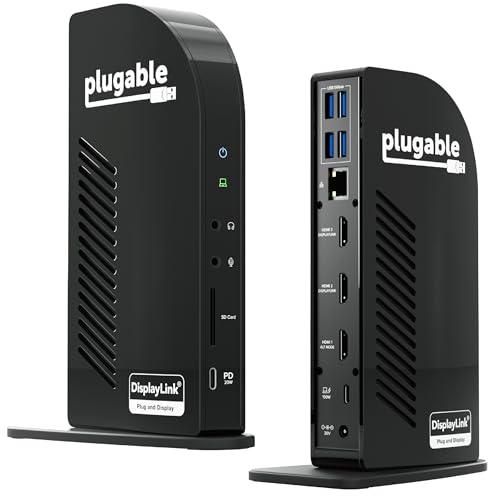
- Supports three extended HDMI displays
- 100W laptop and 20W accessory charging
- Designed for mixed-device deployments
Best For: Office and IT-managed multi-monitor workstations
Best Budget Dual-Monitor Dock

- Drives two HDMI displays up to 1920x1200
- Works with USB-C and USB-A laptops
- Adds Ethernet, USB, and audio connectivity
Best For: Everyday office productivity and standardized dual-screen desks
Best for Business PCs
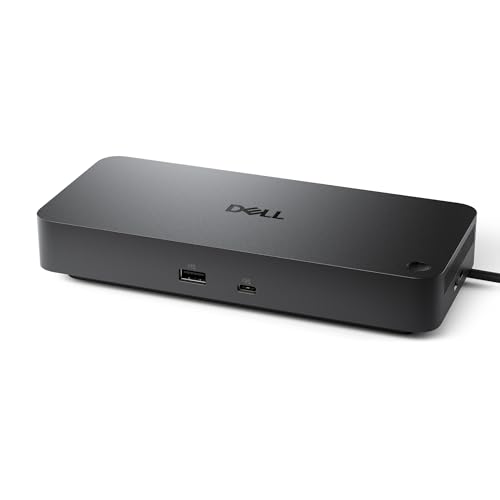
- Up to 100W power delivery for compatible laptops
- Native support for up to four high-resolution displays
- Enterprise-friendly manageability and 3-year warranty
Best For: Business workstations and IT-managed office desks
Best Budget Dual-Display Pick

- Adds two HDMI displays at up to 1920×1200
- Includes Ethernet, audio, and six USB ports
- Supports Windows, macOS, and ChromeOS
Best For: Everyday office productivity with dual HD monitors
Best for Port Variety

- Combines HDMI, DisplayPort, USB, Ethernet, and card readers
- Supports flexible multi-monitor configurations
- Offers up to 100W USB-C Power Delivery
Best For: Expanded desk setups requiring many ports and display options
Best Compact Dual-Display Pick – Anker 8-in-1 USB-C Docking Station
This compact Anker docking station adds essential connectivity through one USB-C port, including dual HDMI, Ethernet, USB-A, and SD/microSD card readers. It is a practical choice for compatible Windows, ChromeOS, and USB-C laptops when you want a straightforward desk setup without a large dock.
Best For: Home offices and users who need dual-monitor support, wired networking, and card-reader access in a lightweight hub.
Pros:
- Supports one 4K display at 60Hz or two displays at 4K 30Hz.
- Includes Ethernet, two USB-A data ports, HDMI, SD, and microSD connectivity.
- Provides up to 85W USB-C Power Delivery pass-through charging.
- Compact 3.2-ounce design with an 18-month warranty.
Cons:
- Requires a separate 100W PD wall charger and USB-C cable for charging.
- Mirrored output is used for both external monitors on macOS.
- Not compatible with Linux.
Choose this model if portability and core expansion matter more than advanced Thunderbolt features. Its display limitations and macOS mirroring are important to verify before buying.
Best Business Thunderbolt Dock – Dell Pro Thunderbolt 4 Smart Dock
The Dell Pro Thunderbolt 4 Smart Dock is a business-oriented docking station built for demanding multi-display workspaces. It combines Thunderbolt 4, HDMI 2.1, DisplayPort 1.4, 2.5GbE networking, Wi-Fi management, and high-power USB-C charging in a secure, compact design.
Best For: Business users, creative professionals, and managed offices that need up to four 4K displays and remote dock administration.
Pros:
- Supports up to four 4K monitors through HDMI 2.1, DisplayPort 1.4, USB-C, and Thunderbolt 4.
- Delivers up to 130W to Dell systems and up to 96W to other devices.
- Offers 2.5GbE, dual Thunderbolt 4, Wi-Fi management, and business security features.
- Uses 65% recycled plastic and fully recycled packaging.
Cons:
- Its business-focused feature set may be more than casual users need.
- The supplied notes specify Windows 10 as the minimum operating system version.
- Its 580-gram weight is less portable than a compact USB-C hub.
This is the strongest fit for a permanent workstation or managed deployment. It stands out when display capacity, networking speed, security, and remote management justify a premium business docking station.
Best High-Power USB-C Dock – Anker Prime 14-in-1 Docking Station
Anker’s Prime 14-in-1 docking station is designed for users who want extensive connectivity and substantial charging capacity from one desk accessory. It supports dual HDMI displays, up to 10Gbps data transfer, Ethernet, audio, and simultaneous charging for multiple devices.
Best For: Power users with several USB-C peripherals who want a high-output docking station for a Windows or ChromeOS workstation.
Pros:
- Provides 14-in-1 connectivity with 11 data-focused ports and dual HDMI.
- Offers 160W total output, with up to 100W from each of three USB-C ports.
- Supports data transfer speeds up to 10Gbps.
- Includes a 100W, 10Gbps upstream USB-C cable and a 24-month warranty.
Cons:
- Dual HDMI output reaches 2K at 60Hz with a DP 1.4 laptop, or 1080p at 60Hz with DP 1.2.
- Both external displays are identical on macOS.
- Not compatible with Linux and does not support a 5120×1440 monitor.
This dock makes sense when charging and port count are priorities. Confirm your laptop’s DisplayPort version and operating system first, especially if you need independent macOS displays or an ultrawide 5120×1440 monitor.
Best Triple-Monitor Dock – Plugable USB-C Triple Display Dock
The Plugable USB-C Triple Display Docking Station is built for multi-monitor productivity in hybrid offices and shared workspaces. Its 12-in-1 design combines three HDMI outputs, DisplayLink support, USB peripherals, Gigabit Ethernet, audio, and 100W Power Delivery across Windows, macOS, and ChromeOS systems.
Best For: Hybrid teams and professionals who need up to three extended HDMI displays from compatible laptops, including Apple Silicon MacBooks.
Pros:
- Supports up to three extended HDMI displays: one 4K at 30Hz and two 1080p at 60Hz.
- DisplayLink helps bypass native single-display limits on supported Apple Silicon MacBooks.
- Includes six USB 3.0 ports, Gigabit Ethernet, audio, and 100W host charging.
- Offers enterprise-focused compatibility support and lifetime technical assistance.
Cons:
- macOS requires driver installation.
- Not compatible with Linux, and HDCP is not supported.
- Only one of the three displays reaches 4K, while the other two are limited to 1080p at 60Hz.
This is a practical docking station for offices that standardize on three HDMI monitors and mixed laptop fleets. DisplayLink expands compatibility, but driver requirements and the HDCP limitation should be considered for media-focused setups.
Best Hybrid Docking Station – Anker Nano 13-in-1 Detachable Dock
The Anker Nano is a flexible choice among docking stations for users who want a full desktop setup without giving up portability. Its detachable 6-in-1 USB-C hub separates from the 13-in-1 dock, while HDMI, DisplayPort, Ethernet, card readers, USB ports, and audio support cover common home-office needs.
Best For: Professionals who switch between a permanent desk setup and mobile work, especially users who need up to three external displays.
Pros:
- Detachable design combines a desktop dock and portable USB-C hub.
- Supports up to three monitors, with up to 4K at 60Hz on a single display.
- Provides up to 100W laptop charging and includes a 140W power adapter.
- Offers 10Gbps USB-C data transfer, Gigabit Ethernet, SD/TF readers, and audio.
Cons:
- macOS supports mirrored mode only for multiple external displays.
- Requires a laptop connection to activate the dock and its ports.
This is a particularly versatile docking station for Windows laptop users who value both monitor expansion and travel convenience. Mac users should verify that the mirrored-display limitation fits their workflow.
Best for Triple-Monitor Fleets – Plugable 13-in-1 DisplayLink Dock
The Plugable 13-in-1 is one of the more deployment-focused docking stations in this lineup. It combines three HDMI outputs, 100W laptop charging, 20W accessory charging, Ethernet, USB connectivity, and DisplayLink support for expanded multi-monitor workspaces across Windows, macOS, and ChromeOS.
Best For: Business, education, and government environments standardizing triple-monitor desks across mixed laptop fleets.
Pros:
- Supports up to three extended HDMI displays through DisplayLink.
- Delivers up to 100W to a laptop and 20W to phones or accessories.
- Works with compatible Windows, macOS, and ChromeOS USB-C, USB4, and Thunderbolt systems.
- Includes TAA, NDAA, and Section 889 compliance plus lifetime technical support.
Cons:
- macOS requires DisplayLink Manager, and drivers are required for HDMI 2 and 3.
- Does not support HDCP-protected content such as Netflix or Hulu.
- The primary HDMI output is limited to 4K at 30Hz.
This docking station makes the most sense when consistent multi-monitor deployment and broad system compatibility matter more than plug-and-play simplicity. Its DisplayLink requirements and HDCP limitation should be considered before purchase.
Best Budget Dual-Monitor Dock – Plugable Universal HDMI Dock
The Plugable UD-3900Z is a practical option among docking stations for basic office productivity. It connects through USB-C or USB-A, adds two HDMI outputs, and includes Ethernet, USB ports, and audio in a compact vertical design. It is built for everyday work rather than high-performance media use.
Best For: Office users and IT teams that need dual 1080p-class displays across newer and older laptops.
Pros:
- Supports two HDMI displays up to 1920×1200.
- Includes both USB-C and USB-A host cables for broad laptop compatibility.
- Adds Gigabit Ethernet, two 5Gbps USB ports, four USB 2.0 ports, and audio.
- Supports Windows, macOS, and ChromeOS, with lifetime North American-based support.
Cons:
- Does not charge connected laptops.
- macOS requires DisplayLink software for external displays.
- Does not support HDCP content, gaming, full-screen video playback, or DisplayPort monitors.
This is a sensible dual-monitor docking station for spreadsheets, web applications, and business software, particularly where USB-A compatibility is useful. Choose a different model if laptop charging, gaming, or protected video playback is important.
Best for Business PCs – Dell Pro WD25 Docking Station
The Dell Pro WD25 is a business-focused choice among docking stations, combining USB-C connectivity, up to 100W power delivery, wired networking, and support for up to four high-resolution displays. It is designed for modern Dell and non-Dell PCs, with broad operating-system compatibility and manageability features suited to office environments.
Best For: Business users and IT-managed workstations that need multi-monitor support, laptop charging, and reliable peripheral connectivity.
Pros:
- Supports up to four high-resolution displays.
- Provides up to 100W of power for compatible laptops.
- Includes Ethernet, USB-A, USB-C, HDMI, and DisplayPort connectivity.
- Offers a 3-year limited hardware warranty with Advanced Exchange.
Cons:
- Its strongest features are geared toward office and enterprise setups rather than casual home use.
- Display and charging capabilities depend on the connected computer and compatible peripherals.
The WD25 stands out when manageability, display expansion, and workplace compatibility matter more than having the smallest possible hub. Its durable USB-C connector, configurable cable routing, and recycled-material construction add practical design benefits for a permanent desk setup.
Best Budget Dual-Display Pick – Plugable UD-3900 Dock
The Plugable UD-3900 is a straightforward option among docking stations for adding two HDMI monitors and extra USB connectivity through one host connection. Its hybrid USB 3.0 and USB-C cable works with many Windows, Mac, and ChromeOS systems, though it requires DisplayLink software in some cases and does not charge the laptop.
Best For: Productivity users who want dual HD monitors, wired Ethernet, audio ports, and multiple USB connections without laptop charging.
Pros:
- Supports two HDMI displays up to 1920×1200 at 60Hz.
- Provides Gigabit Ethernet, audio ports, two USB 3.0 ports, and four USB 2.0 ports.
- Works with Windows, macOS, and ChromeOS systems, with the stated driver requirements.
- Includes 2-year coverage and lifetime support.
Cons:
- Does not charge the host laptop.
- Does not support 4K, DisplayPort connections, gaming, or HDCP-protected streaming content.
- Not compatible with Linux or Unix systems.
The UD-3900 makes sense for office documents, web applications, and general productivity where dual HD screens are enough. Buyers should confirm their operating system and accept the DisplayLink driver requirement before choosing it.
Best for Port Variety – MOKiN 14-in-1 USB-C Dock
The MOKiN 14-in-1 is one of the more versatile docking stations for users who need multiple display outputs, card readers, networking, USB ports, and USB-C power delivery in one unit. It combines two HDMI ports and two DisplayPort ports with support for multi-monitor configurations, making it a flexible fit for compatible Windows and macOS laptops.
Best For: Laptop users who need extensive port expansion, flexible multi-monitor connections, SD and microSD access, and wired Gigabit Ethernet.
Pros:
- Offers 14 ports, including two HDMI, two DisplayPort, Ethernet, USB, and SD/microSD readers.
- Supports flexible combinations of HDMI and DisplayPort outputs for multi-monitor setups.
- Provides up to 100W USB-C Power Delivery for the connected laptop.
- Includes a screen lock button and multiple 5Gbps USB ports.
Cons:
- Actual display support depends on the laptop, operating system, and chosen monitor configuration.
- The product is described as supporting Windows 10 and macOS, so other systems are not established by the supplied details.
- Power delivery is rated up to 100W, while the notes also identify 87W PD as an item highlight.
The MOKiN is a strong choice when one connection needs to handle displays, storage cards, accessories, networking, and charging. Its broad port selection is especially useful for creators and desk users, provided the laptop supports the intended display arrangement.
How We Picked the Best Docking Stations
We compared these Docking Stations by checking the features that most affect everyday use: display support, maximum resolution, charging capacity, port selection, connectivity standards, compatibility, and overall practicality. The list includes compact hubs for simple dual-monitor setups as well as full-size docks designed for demanding desks and business environments.
We also considered whether a dock uses USB-C, USB 3.0, or Thunderbolt, since those standards determine bandwidth, monitor flexibility, data speeds, and host-device compatibility. Because operating systems and laptops handle display outputs differently, buyers should confirm support for their specific Windows laptop, Mac, Chromebook, or workstation before ordering.
Quick Comparison
- Best for high-performance desks: Dell Pro Thunderbolt 4 Smart Dock SD25TB4, with powerful charging, multiple displays, fast networking, and Thunderbolt connectivity.
- Best for straightforward dual monitors: Dell Pro Laptop Docking Station WD25 or Anker’s dual-monitor USB-C options.
- Best for triple-display setups: Plugable’s USB-C triple-display models, especially when 100W power delivery is important.
- Best for legacy flexibility: Plugable’s USB 3.0 Universal Laptop Docking Station, which can work with a broad range of computers.
- Best for compact workspaces: Anker Nano and MOKiN models, which combine useful expansion with a smaller footprint.
Key Buying Factors for Docking Stations
Display Support and Resolution
Start with the number of screens you need and the resolution you expect to run. A dock advertised for dual 4K displays may require a compatible USB-C or Thunderbolt port, while some universal docks rely on DisplayLink software. Check refresh-rate limits, supported outputs, and whether your computer can drive the requested arrangement independently.
Power Delivery
Power delivery determines whether the dock can charge your laptop while connected. A 100W dock is suitable for many productivity laptops, but the computer may receive less after the dock reserves power for its own operation. Higher-wattage Thunderbolt docks are better suited to powerful business laptops and mobile workstations.
Ports and Networking
Count the ports you will actually use: HDMI, DisplayPort, USB-A, USB-C, Ethernet, audio, SD card, and extra Thunderbolt connections. A dock with 2.5GbE networking can be worthwhile for large file transfers, while standard Gigabit Ethernet is sufficient for most office and home internet connections.
Compatibility and Setup
Verify host-port requirements, operating-system support, included cables, driver needs, and Mac display limitations. Some docks support multiple extended displays on Windows but offer fewer independent screens on certain Mac models. Firmware updates can also improve stability and compatibility.
Who Should Buy Which Docking Stations?
Choose a compact USB-C model if you mainly need HDMI, USB peripherals, and charging without adding much bulk. Select a triple-display dock if your workflow depends on several extended monitors for spreadsheets, editing, coding, or research. Thunderbolt models are the strongest choice for fast storage, high-resolution displays, demanding laptops, and a single-cable premium workstation.
For shared offices or mixed-device households, a universal dock offers broader compatibility, though it may require software and can have different performance characteristics. Before buying, match the dock’s outputs and power rating to your laptop, monitors, and accessories rather than choosing solely by port count.