
If you need fast access to bare drives, a good docking station can make backups, cloning, and drive testing much easier. The best models support both 2.5-inch and 3.5-inch SATA drives, offer stable transfer speeds, and keep setup simple.
In this roundup, we focus on hard drive docking stations that balance convenience, compatibility, and value so you can choose the right one for your workflow.
Best 10 Hard Drive Docking Stations Picks for 2026
Dual-Bay Cloning Dock
SABRENT USB 3.0 Dual Bay Dock & Cloner
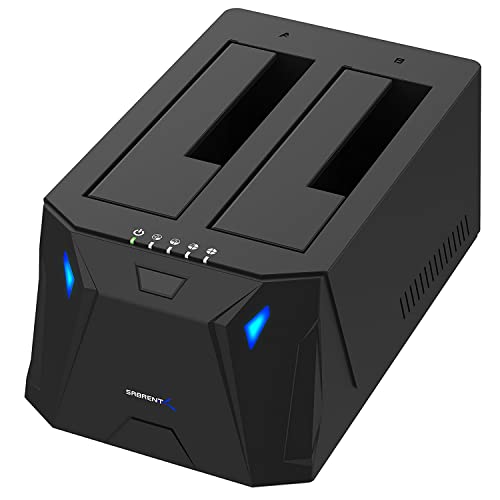
- Two-bay dock for SATA HDDs and SSDs
- Offline cloning up to 60Mbps
- USB 3.0 plug-and-play with no drivers
Best For: People who want a simple two-drive dock with offline cloning
Single-Bay Lay-Flat Dock
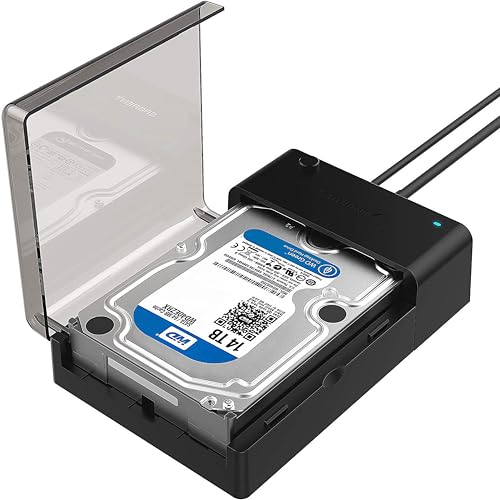
- Supports bare 2.5-inch and 3.5-inch SATA drives
- Includes 12V power adapter for 3.5-inch HDDs
- Tool-free hot-swap, plug-and-play setup
Best For: Anyone who wants a simple one-drive SATA dock
USB-C Compatible Dual Dock
WAVLINK USB 3.0 and USB C SATA Dock

- USB 3.0 and USB-C support
- Dual-bay dock for 2.5-inch and 3.5-inch SATA drives
- Offline cloning with UASP up to 6Gbps
Best For: Users who want a dual-bay dock with USB-C and cloning
Dual-Bay Offline Cloner Dock

- Dual-bay dock for two SATA drives
- Offline cloning without a computer
- USB 3.0 up to 5Gbps
Best For: Users who want a simple dual-bay dock with offline clone support for SATA drives.
USB-C Dual-Bay Cloner Dock

- Offline cloning without a computer
- Dual bays for two SATA drives
- USB-C connection with 5Gbps support
Best For: Users who want a USB-C dual-bay dock with straightforward offline drive cloning.
Lay-Flat Single-Bay Dock
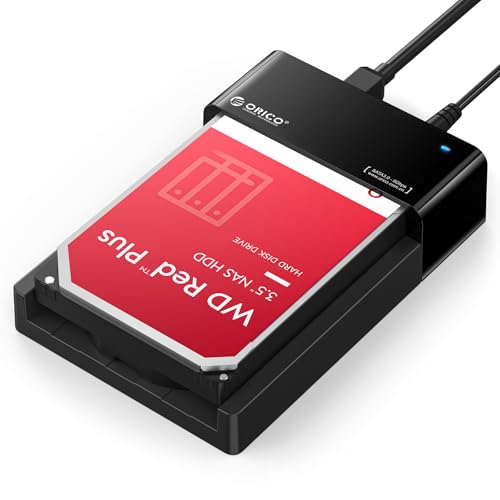
- USB 3.0 with UASP up to 5Gbps
- Supports 2.5-inch and 3.5-inch SATA drives up to 24TB
- Tool-free, hot-swappable lay-flat design
Best For: Everyday single-drive backups and storage expansion
Dual-Bay Clone Dock

- Dual-bay dock for two SATA drives
- Offline clone function without a computer
- USB 3.0 UASP up to 5Gbps
Best For: Backups and drive cloning on a two-bay setup
Versatile Dual-Bay Cloner

- Dual bays support up to 44TB total
- Offline clone function for drive duplication
- USB 3.0 UASP and Trim up to 5Gbps
Best For: Users needing cloning plus broad device compatibility
Dual-Bay Cloning Dock – SABRENT USB 3.0 Dual Bay Dock & Cloner
If you want hard drive docking stations that can both read drives and duplicate them offline, this SABRENT dual-bay model is built for that workflow. It supports 2.5-inch and 3.5-inch SATA HDDs and SSDs, handles drives up to 10TB, and offers plug-and-play setup with no driver installation.
Best For: Users who need a two-bay dock for simple drive access and offline cloning.
Pros:
- Dual-bay design supports two SATA drives at once.
- Offline cloning is supported up to 60Mbps.
- Works with 2.5-inch and 3.5-inch SATA hard drives or SSDs.
- USB 3.0 offers speeds up to 5Gbps.
Cons:
- Limited to SATA drives, not IDE/PATA or M.2 formats.
- Max drive support is listed at 10TB in the notes.
- Cloning speed is modest compared with direct file transfers.
This is a practical choice if cloning matters as much as everyday drive access. It keeps setup simple while covering the common desktop SATA drive sizes most people use.
Single-Bay Lay-Flat Dock – SABRENT USB 3.0 to SATA Dock
This is one of the more straightforward hard drive docking stations if you just need to connect a bare SATA drive quickly. It supports 2.5-inch and 3.5-inch SATA HDDs and SSDs, uses a USB Type-A host cable, and includes a 12V power adapter for stable operation with larger drives.
Best For: Users who want a simple, tool-free dock for one bare SATA drive.
Pros:
- Tool-free, hot-swap design keeps drive changes easy.
- Supports SATA I/II/III 2.5-inch and 3.5-inch drives.
- Includes a 12V power adapter for 3.5-inch drives.
- Plug-and-play support on Windows, macOS, and Linux.
Cons:
- Does not support IDE/PATA, M.2, SAS, or drives already in enclosures.
- Uses USB Type-A, so USB-C-only systems need an adapter.
- Only one drive is supported at a time.
This dock is best when convenience matters more than extra features. It is a clean fit for everyday SATA drive access, especially if you already know your system has the right USB-A port.
USB-C Compatible Dual Dock – WAVLINK USB 3.0 and USB C SATA Dock
Among hard drive docking stations, this WAVLINK unit stands out if you want dual-bay support and both USB 3.0 and USB-C compatibility. It works with 2.5-inch and 3.5-inch SATA HDDs and SSDs, supports offline cloning, and uses UASP to reach speeds up to 6Gbps.
Best For: Buyers who need a dual-bay SATA dock with USB-C support and cloning.
Pros:
- Supports both USB 3.0 and USB-C connections.
- Dual-bay design works with 2.5-inch and 3.5-inch SATA drives.
- Offline clone function is included.
- UASP support is rated up to 6Gbps.
Cons:
- Offline cloning is only from source disk to target disk.
- Not compatible with M1/M2-based Macs.
- Target drive must be the same size or larger for cloning.
This is a solid pick if USB-C is part of your setup and you want the flexibility of two drive bays. The cloning feature adds value, but the compatibility limits are important to check before buying.
Single-Bay Power-Ready Dock – SABRENT USB 3.0 to SATA Dock
If you want a no-frills option in hard drive docking stations, this SABRENT single-bay dock keeps the focus on reliable SATA drive access. It supports 2.5-inch and 3.5-inch SATA HDDs and SSDs, includes the AC adapter, and adds clear LED indicators plus automatic sleep after inactivity.
Best For: People who need a dependable single-drive SATA dock with included power.
Pros:
- Supports 2.5-inch and 3.5-inch SATA HDDs and SSDs up to 20TB.
- AC adapter is included and required for operation.
- USB 3.0 with UASP supports up to 5Gbps.
- Auto-sleep and LED status indicators add convenience.
Cons:
- Only one drive is supported at a time.
- New or blank drives must be initialized before they appear.
- Sleep mode can look like a failure if you are not expecting it.
This model is a practical, power-included dock for routine SATA drive work. It is especially useful if you want visible status indicators and do not need multi-bay features or cloning.
Dual-Bay Offline Cloner Dock – FIDECO SATA HDD/SSD Dock
If you want hard drive docking stations that can handle two SATA drives at once, this FIDECO dock is a practical pick for backups, drive access, and offline cloning. It supports both 2.5-inch and 3.5-inch SATA HDDs and SSDs, with USB 3.0 speeds up to 5Gbps and plug-and-play use on major desktop operating systems.
Best For: Users who want a simple dual-bay dock with offline clone support for SATA drives.
Pros:
- Dual-bay design lets you connect two 2.5-inch or 3.5-inch SATA drives simultaneously
- Offline cloning works without a computer when both bays are filled
- USB 3.0 supports up to 5Gbps transfer speeds
- Plug-and-play setup requires no driver installation
Cons:
- Supports SATA HDD/SSD only, not IDE or other drive types
- New drives must be initialized before they can be recognized
This is a straightforward choice if your priority is easy SATA drive access plus the convenience of standalone cloning. It is especially useful for users who swap drives often and want a no-fuss dock for routine storage tasks.
Compact SATA Dock for Everyday Use – ORICO 22TB USB 3.0 Dock
Among hard drive docking stations, this ORICO model stands out for broad device support and a compact, easy-to-use layout. It works with 2.5-inch and 3.5-inch SATA drives, supports UASP/Trim, and is designed for fast drive access, backups, and data transfer over USB 3.0.
Best For: People who want a versatile single-bay SATA dock for multiple devices and operating systems.
Pros:
- Supports 2.5-inch and 3.5-inch SATA I/II/III HDDs and SSDs
- UASP and Trim support with speeds up to 5Gbps
- Works with PCs, laptops, smart TVs, routers, PS5, and more
- Includes power supply and a 3ft USB-A cable
Cons:
- Single-bay design supports only one drive at a time
- New or unallocated drives must be initialized and formatted first
This dock makes sense if you need broad compatibility more than advanced features like cloning. Its simple tool-less design and wide platform support make it a flexible option for everyday SATA drive access.
USB-C Dual-Bay Cloner Dock – SABRENT EC-CH2B
If your shortlist of hard drive docking stations includes offline cloning, this SABRENT model is built around that workflow. It accepts two SATA drives at once, works over USB-C at up to 5Gbps, and can clone one drive to another without a computer when you just need a direct copy.
Best For: Users who want a USB-C dual-bay dock with straightforward offline drive cloning.
Pros:
- Offline cloning works without connecting to a PC
- Dual bays mount as separate drives for working with two disks at once
- Supports 2.5-inch and 3.5-inch SATA HDDs and SSDs
- USB 3.0 speeds up to 5Gbps with plug-and-play operation on Windows and Mac
Cons:
- Requires a USB-C port on the computer side unless you supply your own adapter cable
- Does not support IDE, PATA, M.2, or NVMe drives
This is a strong fit if cloning is a regular task and you want USB-C convenience. It is less about broad drive compatibility and more about giving SATA users a simple, dual-bay workflow with no software required for offline copies.
Lay-Flat Single-Bay Dock – ORICO USB 3.0 UASP Dock
If you want a straightforward hard drive docking station for fast file access, backups, or drive swaps, this ORICO single-bay model keeps things simple. It supports 2.5-inch and 3.5-inch SATA HDDs and SSDs, delivers up to 5Gbps with UASP, and its lay-flat design helps with passive heat dissipation during longer transfers.
Best For: Users who want an easy, tool-free single-drive dock for everyday backups and storage expansion.
Pros:
- USB 3.0 with UASP for up to 5Gbps transfer speeds
- Supports 2.5-inch and 3.5-inch SATA drives up to 24TB
- Tool-free, hot-swappable design for quick drive changes
- Lay-flat build helps improve heat dissipation
Cons:
- Only supports one drive at a time
- No offline cloning function
- Basic design is focused on utility rather than advanced features
Overall, this is a practical pick if you mainly need dependable single-drive access with broad OS compatibility and no setup hassles. It is a strong fit for routine backups, migration tasks, and occasional drive testing.
Dual-Bay Clone Dock – WAVLINK Offline Clone Station
This WAVLINK option is one of the more practical hard drive docking stations if you need to work with two SATA drives at once. It supports 2.5-inch and 3.5-inch HDDs and SSDs, offers UASP-enhanced USB 3.0 transfer speeds, and includes an offline clone function so you can duplicate a drive without a computer.
Best For: Users who want a dual-bay dock for backups, cloning, and frequent drive handling.
Pros:
- Dual-bay design supports two SATA drives at once
- Offline clone function works without a computer
- USB 3.0 with UASP for up to 5Gbps speeds
- Tool-free, hot-swappable, plug-and-play operation
Cons:
- Target disk must be at least as large as the source disk for cloning
- Plastic enclosure may feel less rugged than metal options
- Clone feature is limited to same-style drive duplication workflows
For users who routinely back up data or clone drives, this dock adds real convenience without complicating the workflow. The bezel design and included adapters make it a versatile choice for a desktop setup.
Versatile Dual-Bay Cloner – ORICO 44TB Docking Station
If you want a flexible hard drive docking station for cloning, backups, and cross-device use, this ORICO dual-bay model is built for that job. It supports 2.5-inch and 3.5-inch SATA HDDs and SSDs, handles up to 44TB total capacity, and offers offline cloning plus UASP/Trim support for faster transfers.
Best For: Users who need a dual-bay dock that can handle cloning and work across many device types.
Pros:
- Supports up to 44TB total across two bays
- Offline clone function duplicates drives without a computer
- USB 3.0 with UASP and Trim for up to 5Gbps speeds
- Wide device and OS compatibility, including PCs, TVs, routers, and more
Cons:
- Cloning requires the target disk to be larger than the source disk
- Dock will not power on without a drive inserted
- Designed as a utility tool, so it lacks premium finishing touches
This is a strong all-around choice if you need more than basic drive access and want the added value of offline duplication. The included power adapter, dust-proof cover plate, and anti-skid pad make it feel ready for regular use.
How We Picked These Hard Drive Docking Stations
We prioritized real-world usefulness: drive compatibility, connection options, transfer performance, cloning features, and ease of use. For Hard Drive Docking Stations, the best choice is usually the one that matches your drive type and your main task, whether that is quick file access, disk imaging, or offline duplication.
Quick Comparison: What Matters Most
Single-bay docks are best for simple plug-and-play access and everyday backups. Dual-bay models are more versatile if you want to clone drives, compare disks, or work with two drives at once. USB-C models can be a better fit for newer laptops, while USB 3.0 docks remain a solid option for broad compatibility.
Performance and Connection Type
Look for UASP support and a stable high-speed USB connection if you move large files often. While a dock will not outperform a full internal SATA setup, better controller support can make a noticeable difference in responsiveness.
Drive Support and Build Features
Check whether the dock supports both 2.5-inch and 3.5-inch SATA HDDs and SSDs. Features like offline cloning, fixed bezels, and dual-bay layouts add convenience, but only if you will actually use them.
Key Buying Factors for Hard Drive Docking Stations
Compatibility: Make sure the dock supports the drive sizes and interfaces you own. Most shoppers need SATA support, but not every dock is equally friendly with larger 3.5-inch HDDs and older drives.
Cloning vs. Access: If you only need a dock for backups or file recovery, a single-bay model may be enough. If you want to duplicate drives without a computer, choose a dual-bay dock with offline cloning.
Speed: USB 3.0 is still dependable for most users, but USB-C and UASP-enabled models can improve efficiency with modern systems and SSDs.
Stability: A dock should hold drives securely and maintain a reliable connection during long transfers. That matters more than flashy extras.
Who Should Buy Which Hard Drive Docking Stations?
If you want the simplest option for occasional storage access, go with a single-bay dock. If you manage multiple drives, build systems, or need easy migration tools, a dual-bay model is the smarter pick. Laptop users with newer ports may prefer a USB-C dock, while desktop owners and budget shoppers can often save money with a standard USB 3.0 model.
For most buyers, the best Hard Drive Docking Stations are the ones that match your workflow first and your speed needs second. Start with compatibility, then choose the feature set that removes friction from your day-to-day drive tasks.