
When it comes to maximizing your workspace, choosing the right docking station can make a significant difference. With so many options available, it’s essential to find one that caters to your specific needs, especially if you require DisplayPort capabilities. From multi-monitor setups to high-speed data transfer, these devices enhance productivity and connectivity. Let’s explore the top contenders that stand out in performance and versatility, ensuring you make an informed choice.
USB C Docking Station Dual DisplayPort, 8 in 1 Hub for Laptops

If you’re looking for a versatile solution to connect multiple displays and devices, the USB C Docking Station with Dual DisplayPort is an excellent choice for laptop users. This 8-in-1 hub features dual DisplayPorts, HDMI, and VGA outputs, allowing you to enjoy stunning visuals at up to 4K resolution. With a powerful 100W PD charging port, you can quickly charge your laptop while using it. Plus, the USB C and two USB A ports provide convenient data transfer speeds of up to 480Mbps. It’s compatible with a range of devices, ensuring seamless connectivity. Enjoy an enhanced workspace experience!
Best For: Laptop users who need a versatile docking solution for multiple displays and fast charging capabilities.
Pros:
- Supports dual 4K displays via DisplayPort and HDMI, enhancing productivity and visual experience.
- Features a powerful 100W PD charging port for quick and efficient charging of laptops.
- Compatible with a wide range of devices, ensuring seamless connectivity for various brands.
Cons:
- MacBook users can only utilize mirror mode, limiting display options.
- Transfer speeds of USB ports are capped at 480Mbps, which may be slower compared to newer standards.
- Limited to devices with full-featured USB Type-C ports, which may exclude some older laptops.
Plugable Dual DisplayPort & HDMI Docking Station (UD-6950Z)

The Plugable Dual DisplayPort & HDMI Docking Station (UD-6950Z) is an excellent choice for professionals and multitaskers who require high-resolution dual monitor setups. With support for dual 4K monitors at 60Hz via DisplayLink technology, you can enhance your productivity effortlessly. This docking station features dual HDMI and DisplayPort outputs, Gigabit Ethernet, and six USB 3.0 ports, ensuring you stay connected. It’s compatible with Windows, macOS, and ChromeOS, offering plug-and-play functionality for most users. However, keep in mind it’s not suitable for gaming or HDCP content playback, and it doesn’t charge your host computer.
Best For: Professionals and multitaskers who need a reliable docking station for dual 4K monitor setups to enhance productivity.
Pros:
- Supports dual 4K monitors at 60Hz, ideal for multitasking.
- Offers a variety of connectivity options, including six USB 3.0 ports and Gigabit Ethernet.
- Plug-and-play functionality for easy setup on Windows and ChromeOS.
Cons:
- Not suitable for gaming or HDCP content playback (e.g., Netflix, Hulu).
- Manual driver installation required for macOS users.
- Does not charge the host computer.
Anker 11-in-1 USB C Hub Docking Station

Anker’s 11-in-1 USB C Hub Docking Station stands out as an ideal choice for professionals and creatives who need versatile connectivity options. Weighing just 4.8 ounces, it offers a compact design without sacrificing functionality. With ports for USB-C, USB-A, HDMI, and DisplayPort, you can easily connect multiple devices and achieve dual displays. It supports data transfer speeds of up to 10 Gbps, ensuring swift performance. Plus, with 85W pass-through charging, you can keep your laptop powered while you work. Compatible with MacBook and Windows systems, this hub is a reliable tool for enhancing your workspace efficiency.
Best For: Professionals and creatives seeking versatile connectivity options for their devices.
Pros:
- Supports high data transfer speeds of up to 10 Gbps, allowing for efficient file transfers.
- Compact and lightweight design makes it portable and easy to carry for on-the-go use.
- Dual display capability with HDMI and DisplayPort, enhancing productivity through multiple screens.
Cons:
- Requires a separate charger for power delivery, which is not included.
- Not compatible with Linux systems, limiting its use for some users.
- Display output limitations mean only HDMI and DisplayPort can be used for video, not USB-C ports.
Plugable 13-in-1 USB C Docking Station (UD-ULTC4K)
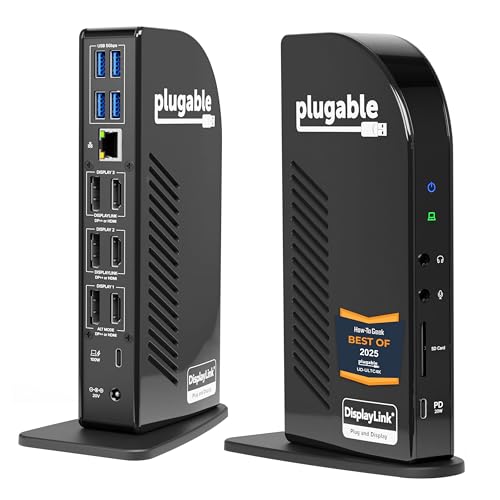
For professionals needing a robust multi-monitor setup, the Plugable 13-in-1 USB C Docking Station (UD-ULTC4K) stands out with its ability to support triple 4K displays at 60Hz. You’ll appreciate the versatility of its 13 ports, including 3x HDMI and 3x DisplayPort outputs, allowing easy connectivity without extra adapters. Plus, with 100W power delivery, you can charge your laptop while working. It’s compatible with various operating systems and supports Thunderbolt and USB4 devices. Just remember, you’ll need to install DisplayLink drivers. This docking station enhances your productivity with seamless connections and efficient power management.
Best For: Professionals who require a versatile and powerful multi-monitor setup for enhanced productivity.
Pros:
- Supports triple 4K displays at 60Hz, providing excellent visual clarity and workspace expansion.
- Includes 13 diverse ports, allowing for easy connections to various devices without the need for extra adapters.
- Delivers up to 100W power, enabling laptop charging directly through the docking station while in use.
Cons:
- Requires installation of DisplayLink drivers, which may add complexity to the setup process.
- Does not support HDCP, limiting usability for certain streaming services.
- Compatibility is restricted to specific operating systems, which may exclude some users.
USB C Docking Station with Dual DisplayPort Monitor
Perfect for professionals and multitaskers, a USB C Docking Station with Dual DisplayPort Monitor capability transforms your workspace into a powerhouse of productivity. With dual DisplayPort outputs supporting 4K at 60Hz, you can connect up to four monitors for seamless multitasking. Confirm your laptop supports DP Alt Mode or Thunderbolt 3/4 for peak performance. This dock also features a 100W USB-C PD 3.0 port for fast charging and multiple USB ports for easy peripheral connections. Plus, enjoy peace of mind with an 18-month warranty and 24/7 customer support. Elevate your setup and maximize efficiency effortlessly!
Best For: Professionals and multitaskers seeking to enhance productivity with multiple monitor setups.
Pros:
- Supports dual DisplayPort outputs for 4K@60Hz, enabling high-resolution multitasking with up to four monitors.
- Includes a 100W USB-C PD 3.0 port for fast pass-through charging, ideal for intensive tasks.
- Plug and play functionality with no drivers required, making it easy to connect peripherals.
Cons:
- Requires laptops to support DP Alt Mode or Thunderbolt 3/4 for full video output capabilities.
- macOS users can only utilize Mirror Mode or single Extend Mode, as MST is not supported.
- Charger not included, necessitating the purchase of a compatible 100W USB-C power adapter separately.
Anker Nano Laptop Docking Station with Detachable Hub (13-in-1 USB-C)

If you’re seeking a versatile docking solution that enhances your productivity, the Anker Nano Laptop Docking Station with Detachable Hub is an excellent choice. This 13-in-1 USB-C dock supports a triple-screen workstation setup or a single display via the detachable hub, making it perfect for mobile work. With dual HDMI and DisplayPort outputs, you can enjoy stunning 4K resolution. It features multiple USB-A and USB-C ports, an Ethernet port, and SD card slots for all your connectivity needs. Plus, it delivers up to 100W to your laptop, ensuring stable power for all your devices while transferring data at impressive speeds.
Best For: Professionals and remote workers seeking a multifunctional docking station that supports multiple displays and a variety of connectivity options.
Pros:
- Versatile connectivity: Offers 13 ports including USB-A, USB-C, HDMI, and Ethernet for comprehensive device support.
- Triple display support: Allows for an expansive workstation setup with up to three screens, boosting productivity.
- High power delivery: Provides up to 100W power to laptops, ensuring reliable performance for connected devices.
Cons:
- Limited macOS compatibility: External monitors mirror content on macOS, restricting display flexibility.
- Requires connection to function: The device’s features activate only when connected to a laptop, which may limit standalone use.
- Size and portability: While the hub is detachable, the overall size may be less convenient for ultra-mobile users.
Dell Pro Dock WD25 – USB Type-C Docking Station
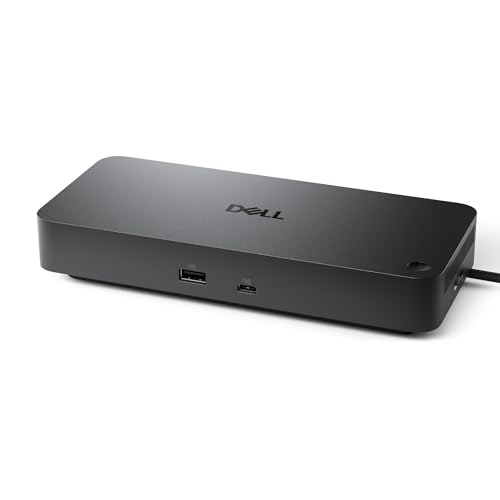
The Dell Pro Dock WD25 stands out as an excellent choice for professionals seeking a versatile docking solution with robust connectivity. It supports DisplayPort and HDMI, allowing you to connect up to four high-resolution displays effortlessly. With USB 3.2 Gen2 ports and up to 100W power delivery, it enhances your productivity considerably. Plus, its design incorporates at least 65% post-consumer recycled materials, showcasing a commitment to sustainability. Managing this dock is seamless, ensuring IT efficiency with minimal disruptions. The ambidextrous USB-C cable offers flexible routing, making it a practical addition to any workspace.
Best For: Professionals seeking a versatile docking solution with robust connectivity and sustainability features.
Pros:
- Supports up to four high-resolution displays for enhanced productivity.
- Delivers up to 100W power to both Dell and non-Dell PCs, minimizing the need for multiple chargers.
- Designed with at least 65% post-consumer recycled materials, promoting environmental sustainability.
Cons:
- May require additional adapters for certain display configurations depending on existing hardware.
- Limited compatibility with older USB ports or non-USB-C devices.
- The initial setup may be complex for users unfamiliar with docking stations.
Dell WD19S Docking Station (130W Power Delivery)

For professionals seeking a reliable and versatile docking solution, the Dell WD19S Docking Station stands out with its impressive 130W Power Delivery. This sleek black dock measures just 1.1 x 3.5 x 8.1 inches and weighs 1.28 pounds, making it easy to integrate into any workspace. With USB-C, HDMI, and dual DisplayPort options, you can connect multiple displays effortlessly. Compatible with Windows 10, Windows 11, Red Hat Enterprise Linux, and Ubuntu, it supports a variety of setups. While it has a customer rating of 3.8 stars, its solid performance and features make it a worthwhile investment for your connectivity needs.
Best For: Professionals seeking a reliable and versatile docking solution for connecting multiple displays and devices.
Pros:
- Impressive 130W Power Delivery allows charging of laptops while connected to peripherals.
- Multiple connectivity options including USB-C, HDMI, and dual DisplayPort enhance workspace flexibility.
- Compact and lightweight design facilitates easy transportation and integration into any workspace.
Cons:
- Customer rating of 3.8 stars suggests mixed feedback regarding performance or reliability.
- Restocking fees apply for returns that are not due to product defects, which may deter some buyers.
- Limited support for older operating systems, potentially excluding users with outdated setups.
WAVLINK Dual Monitor Docking Station

Designed to enhance your productivity, the WAVLINK Dual Monitor Docking Station is perfect for professionals who need robust display capabilities and connectivity options. With 12-in-1 functionality, it includes two DisplayPort outputs, one HDMI port, and 100W power delivery. You can enjoy a stunning dual display at 4K@60Hz, ideal for gaming or presentations. Fast data transfer is guaranteed with 10Gbps USB-A and USB-C ports, while the 2.5 Gigabit Ethernet port guarantees speedy networking. Plus, it’s plug-and-play, so you won’t waste time on installations. Just remember, it’s compatible only with Windows systems.
Best For: Professionals and gamers who require high-resolution dual display capabilities and extensive connectivity options for their Windows systems.
Pros:
- 12-in-1 functionality offers a wide range of ports and features for versatile connectivity.
- Supports dual display up to 4K@60Hz, making it ideal for presentations, gaming, and multitasking.
- Plug-and-play installation eliminates the need for driver downloads, saving time.
Cons:
- Compatibility limited to Windows systems only; not suitable for Mac OS users.
- Requires a specific power adapter (20V/5A) for optimal charging, which is not included.
- Optimal resolution requires DP1.4 and DSC1.2, which may not be available on all devices.
USB C Laptop Docking Station Dual Monitor HDMI 14 in 1 Hub Adapter

Looking for a versatile solution to expand your laptop’s connectivity? The USB C Laptop Docking Station Dual Monitor HDMI 14 in 1 Hub Adapter is your answer. This multiport adapter transforms a single USB C/Thunderbolt port into 14 ports, including two HDMI and a DisplayPort, all supporting stunning 4K resolutions. With fast data transfer speeds of up to 10Gbps and 100W power delivery, you can keep your devices powered while connecting multiple peripherals. Enjoy stable Ethernet connections and easily transfer photos with the SD/Micro SD card reader. It’s compatible with various laptops, enhancing your productivity effortlessly.
Best For: Professionals and creatives who need to expand their laptop’s connectivity options for dual or triple monitor setups.
Pros:
- Supports dual and triple displays with high resolutions, enhancing productivity for multitaskers.
- Fast data transfer speeds of up to 10Gbps, allowing quick file transfers and efficient workflow.
- Power delivery up to 100W, enabling you to charge your laptop while using multiple peripherals.
Cons:
- Limited compatibility as it only works with laptops featuring Thunderbolt 3/4 or USB-C with video output.
- Mirrored display limitation for MacBook users, restricting their ability to use extended displays.
- Does not include cable and adapter for power delivery, potentially requiring additional purchases.
Factors to Consider When Choosing a Docking Station With DisplayPort
When you’re picking a docking station with DisplayPort, consider factors like display resolution support and the number of ports available. You’ll also want to check compatibility with your devices and the power delivery capability. Don’t forget about data transfer speeds, as they can impact your overall productivity.
Display Resolution Support
Choosing the right docking station involves understanding the display resolution support it offers, especially if you plan to connect multiple monitors. Check the maximum display resolution; many models support up to 4K (3840×2160) at 60Hz via DisplayPort. If multitasking is a priority, look for options that can handle dual or even triple 4K displays. It’s also essential to verify the DisplayPort version supported; newer versions like DP 1.4 allow for higher resolutions and refresh rates, including 8K. Make sure your laptop is compatible with DisplayPort Alt Mode for video output through USB-C. Finally, keep in mind that macOS might limit your display configurations, often defaulting to mirrored displays instead of extended modes.
Number of Ports
While evaluating a docking station with DisplayPort, the number of ports is essential for your connectivity needs. You’ll want a docking station that offers a variety of port types, including USB-A, USB-C, HDMI, and Ethernet, to connect different peripherals seamlessly. If you plan to use multiple monitors, verify your docking station has several DisplayPort outputs to enhance productivity. Also, check the data transfer speeds of the USB ports; options with USB 3.1 or higher (up to 10Gbps) will enable faster data transfers between devices. A higher number of ports reduces the need for extra adapters or hubs, helping you maintain a streamlined workspace and minimizing clutter, which is always a plus.
Power Delivery Capability
Power delivery capability is an important factor that shouldn’t be overlooked in a docking station with DisplayPort. This capability typically ranges from 85W to 100W, determining how effectively the docking station can charge your laptop while you’re using it. A higher power delivery guarantees that the dock can support more demanding laptops and peripherals without compromising performance. Many docking stations offer pass-through charging, allowing you to charge your laptop while connecting to multiple displays and other devices. It’s vital to verify that the docking station’s power delivery aligns with your laptop’s requirements to avoid undercharging or potential damage. Additionally, look for efficient power management features to optimize charging speed and minimize energy consumption when connected to multiple devices.
Compatibility With Devices
When selecting a docking station with DisplayPort, it’s essential to guarantee compatibility with your devices to avoid frustrating connectivity issues. First, make sure the docking station supports full-featured USB Type-C ports, as these are vital for display, charging, and data transfer. Check if your laptop supports DisplayPort Alt Mode or Thunderbolt 3/4, which are necessary for video output. Align the docking station’s specifications with your operating system requirements, since some may only work with Windows, macOS, or ChromeOS. Additionally, confirm that your devices can handle the maximum display resolutions and refresh rates, especially if you plan to use multiple monitors. Finally, be aware of macOS limitations, as they might restrict external display functionality.
Data Transfer Speeds
Ensuring compatibility with your devices is just the first step; understanding data transfer speeds is equally important in choosing a docking station with DisplayPort. Data transfer speeds can vary widely, with USB 3.0 and USB-C ports typically offering up to 10 Gbps, while USB 2.0 ports may only provide 480 Mbps. This disparity can considerably impact performance, especially when connecting external devices. If you plan to use multiple high-resolution displays, be aware that this may consume more bandwidth and affect data transfer speeds for other connected devices. Additionally, if your docking station has USB-C Power Delivery, charging capabilities might take precedence, further influencing available speeds. Prioritize speed compatibility with your host device for ideal performance.
Build Quality and Design
While you might focus on features and compatibility when selecting a docking station with DisplayPort, build quality and design are equally important. A sturdy docking station made from aluminum offers better durability than plastic, resisting wear and tear more effectively. Look for designs that promote efficient cable management, which helps reduce clutter and allows easy access to ports without tangling. If portability is a priority, opt for a lightweight and compact model that doesn’t compromise functionality. Ventilation is vital too; a well-designed docking station prevents overheating, especially when multiple devices are connected. Finally, consider aesthetics—color and finish can enhance your workspace, creating a cohesive and professional look that matches your style.